常用接口
以下示例使用 KmaxXR 命名空间。除特别说明外,应在对应场景组件完成初始化后调用。
获取中心相机
XRRig.MainCamera 从 2.7.2 起提供,返回立体相机的中心相机。使用前应判断是否为 null,详见版本更新与迁移。
获取设备标识
KmaxNative.DeviceId 仅在 Android 真机上调用设备接口获取标识。在编辑器及其他平台上返回空字符串并输出警告,不应将其作为通用的跨平台设备标识。
#if UNITY_ANDROID && !UNITY_EDITOR
string deviceId = KmaxXR.KmaxNative.DeviceId;
#endif
监听触笔事件
KmaxStylus 提供以下 UnityEvent,可在 Inspector 中绑定,也可在代码中订阅:
| 事件 | 参数 | 触发条件 |
|---|---|---|
OnObjectEntered |
GameObject |
触笔射线进入物体。 |
OnObjectExited |
GameObject |
触笔射线离开物体。 |
OnButtonPressed |
int |
触笔按键按下。 |
OnButtonReleased |
int |
触笔按键松开。 |
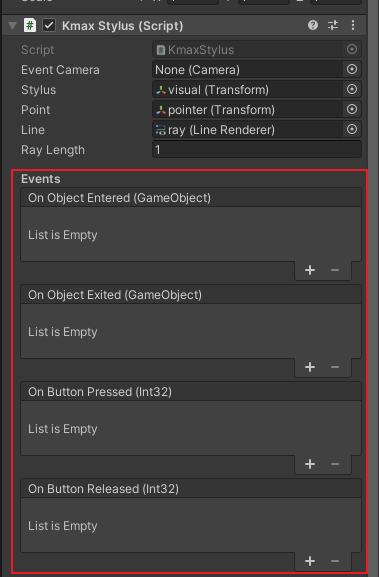
事件传递的按键标识如下。名称保留 SDK 当前的拼写,编写代码时不要自行改名:
| 按键 | 常量 | 值 |
|---|---|---|
| 左键 | KmaxStylus.StylusButtnLeft |
1000 |
| 右键 | KmaxStylus.StylusButtnRigth |
1001 |
| 中键 | KmaxStylus.StylusButtnCenter |
1002 |
以下组件展示成对订阅和取消订阅。将场景中的 KmaxStylus 拖入 Inspector 的对应字段。
using KmaxXR;
using UnityEngine;

/// <summary>
/// 监听触笔按键,组件禁用时取消订阅。
/// </summary>
public sealed class StylusButtonListener : MonoBehaviour
{
    [SerializeField]
    private KmaxStylus stylus;

    private void OnEnable()
    {
        if (stylus != null)
            stylus.OnButtonPressed.AddListener(OnButtonPressed);
    }

    private void OnDisable()
    {
        if (stylus != null)
            stylus.OnButtonPressed.RemoveListener(OnButtonPressed);
    }

    private void OnButtonPressed(int buttonId)
    {
        if (buttonId == KmaxStylus.StylusButtnCenter)
            Debug.Log("触笔中键按下。");
    }
}
GetButton(int)、GetButtonDown(int) 和 GetButtonUp(int) 使用 0、1、2 的按键索引,与上表的事件标识不同。PrimaryKey 控制参与主交互的触笔按键,默认值为中键。
如果需要让同一物体响应触笔、鼠标和触摸,请通过 Unity Event System 的指针/拖拽接口实现;StylusDragable 可作为参考。
手动控制显示模式
XRRig.ManuallySetDisplayMode(bool stereo) 请求切换显示模式,并控制立体相机上的 HeadTracker 启停。未找到已初始化的 XRRig 时,该方法返回 false。
bool accepted = KmaxXR.XRRig.ManuallySetDisplayMode(true);
返回 true 表示 SDK 已处理请求,不代表硬件状态已验证。WebGL 应使用发布到 WebGL中的消息接口,将请求同步给设备追踪服务。